What's new in ProGantt Flow 1.1: critical path and new plans
ProGantt Flow 1.1 adds a critical path highlight, milestone diamonds, unlimited projects and sharing on Free, and a cheaper Pro plan. Here is what changed.
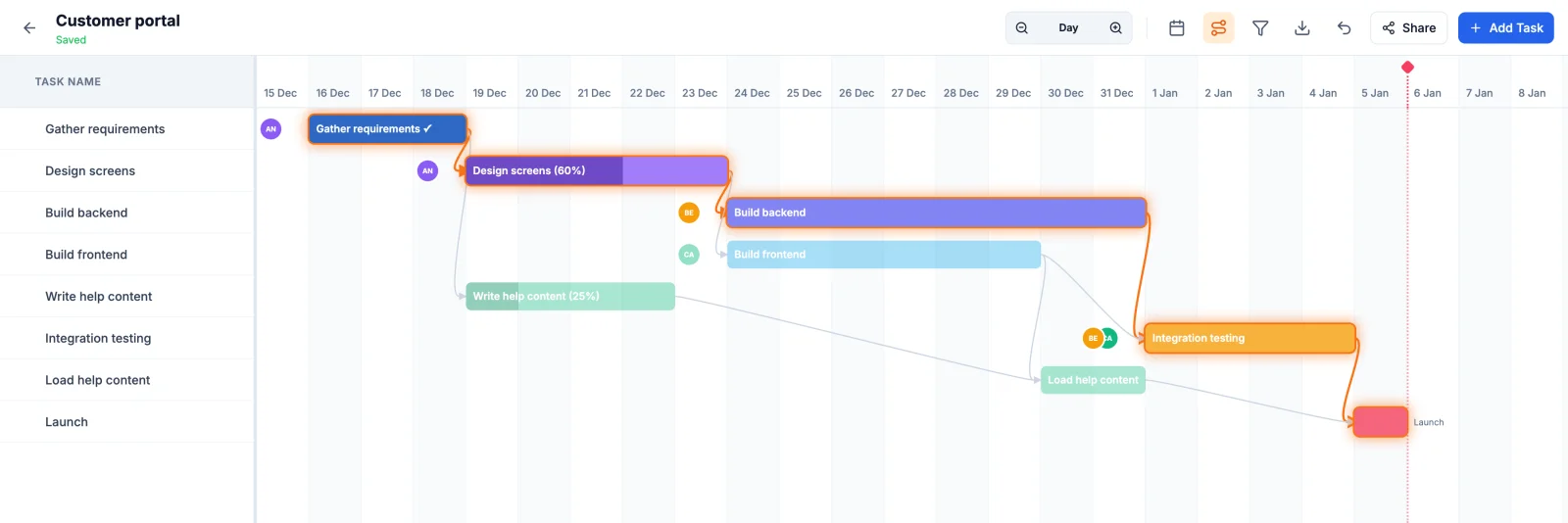
ProGantt Flow 1.1 is out. It adds two new things to the Gantt chart: a one-click critical path highlight, and milestones that are easier to read. The plans have also changed. Free now gives you unlimited projects and lets you share with a few people, and Pro costs less than half of what it did.
Here is everything that changed since 1.0.
Highlight the critical path
The critical path is the chain of tasks that sets your end date. If any task on it slips by a day, the whole project finishes a day later. Tasks off the path have some slack, called float, and can move a little without affecting the deadline. If you want the theory and a worked example, our post on the critical path in a Gantt chart goes through it step by step.
Until now you had to work it out by following the dependency arrows by hand. In 1.1 there is a button for it.
How to use it
Open a project and click the route icon in the top bar, next to the Today button. While it is on:
- Every task on the critical path gets an orange halo.
- The dependency arrows that link those tasks turn orange too, so you can follow the chain from start to finish.
- All the other tasks fade back a little so the path stands out. They are still fully usable: you can drag, resize and edit them as usual.
Click the button again to turn it off.
It updates as you plan
The highlight is recalculated while you work. Drag a task later and you see straight away whether it has joined the critical path. This is the quickest way to answer the question project managers ask most often: "if this slips, does the launch move?"
A few details worth knowing:
- It uses your dates as they are. A task is critical when it has no float left in the plan as you laid it out. ProGantt does not move anything for you.
- Filters do not change it. If you filter the chart by resource or label, the critical path still belongs to the whole project. Hiding a task from view does not remove it from the schedule.
- Task groups are included. A group's dates come from its subtasks, so the analysis looks at the subtasks. When one of them is critical, the group gets the halo as well, which tells you the path runs through it even when the group is collapsed.
- Broken links stay red. If two linked tasks overlap, so the second starts before the first has finished, the arrow stays red even on the critical path. It is a mistake in the plan, and fixing it comes first.
- It works for viewers too. Turning on the highlight does not change the project, so anyone with view-only access can use it, on desktop or mobile.
The critical path depends on your dependencies. If tasks are not linked, ProGantt cannot know that one waits for another. Our guide to task dependencies in a Gantt chart explains how to set them up.
Milestones you can read at a glance
Milestones now appear as diamonds in the timeline header, in the milestone's own color. Hover over a diamond, or tap it on a touch screen, and its label slides out with the name and date.
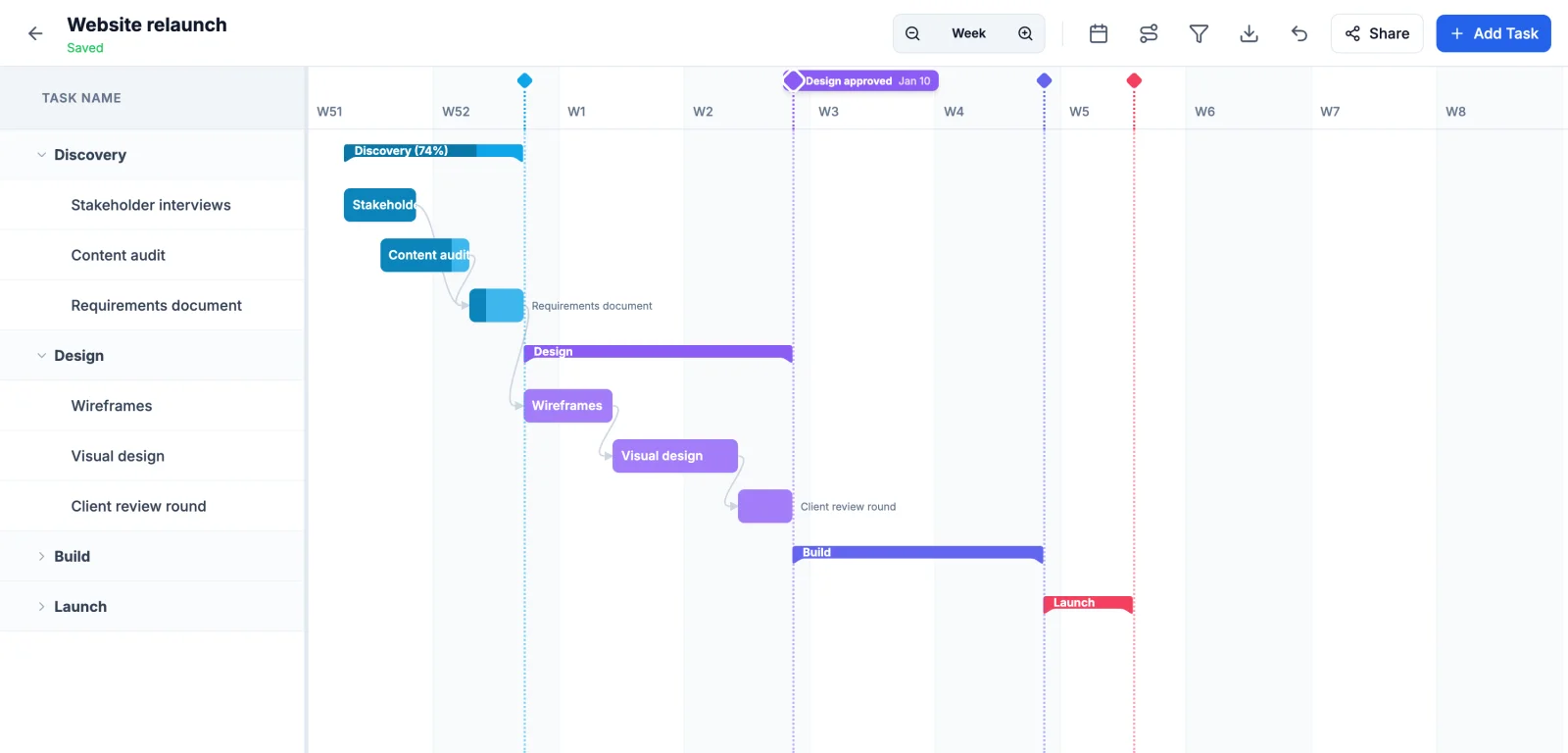
When two milestones fall on the same day, or very close together, their diamonds now sit side by side instead of stacking on top of each other. On a busy plan you can still tell them apart and open each one.
Adding, moving and deleting milestones works as before. Click a date in the header to add one, drag its dotted line to move it, and right-click to delete it. If you are not sure what deserves a milestone, see how to use milestones in a Gantt chart.
New Free and Pro plans
The plans have been reworked so that you can do more on Free, and Pro is cheaper.
| Before 1.1 | Now | |
|---|---|---|
| Projects on Free | Up to 3 | Unlimited |
| Sharing on Free | Not available | Up to 3 people in total |
| Sharing on Pro | Unlimited | Unlimited |
| AI assistant tokens on Free | 2 | 2 |
| AI assistant tokens on Pro | 5 | Unlimited |
| Pro price | $12 / month | $5.90 / month |
Free
You can create as many projects as you like on Free. You can also share them with up to 3 people. That limit counts people, not invitations: it covers every project you own, viewers count, and someone you add to several projects only counts once. So a freelancer can share a plan with a client, or a small team can work from the same schedule, without paying.
Pro
Pro is now $5.90 per month. It removes the sharing limit, lets you re-share projects that others have shared with you, and removes the limit on tokens for connecting AI assistants. Existing Pro subscribers move to the new price at their next renewal.
Who can invite people
Sharing rules are a little tighter now. The owner of a project can invite people to it. An editor who is not the owner can also invite people, but only on Pro. Everyone else can still work on the project with the role they were given. For help choosing between the editor and viewer roles, see editor vs viewer access.
Works with your AI assistant
None of this changes how the ProGantt connector works with Claude and other assistants. It still reads and edits the same projects, with the same permissions. The only difference is that Pro accounts can now create as many connector tokens as they need. Setup steps are in the connector docs.
Try it
All of this is available now in ProGantt Flow. Open a project with a few linked tasks and turn on the critical path to see which of them decide your deadline.